Payout Components SDK
1. Overview
Midasbuy Payout Components SDK is a unified payout components loader. This SDK provides pre-built, customizable components for handling international money transfers and beneficiary management.
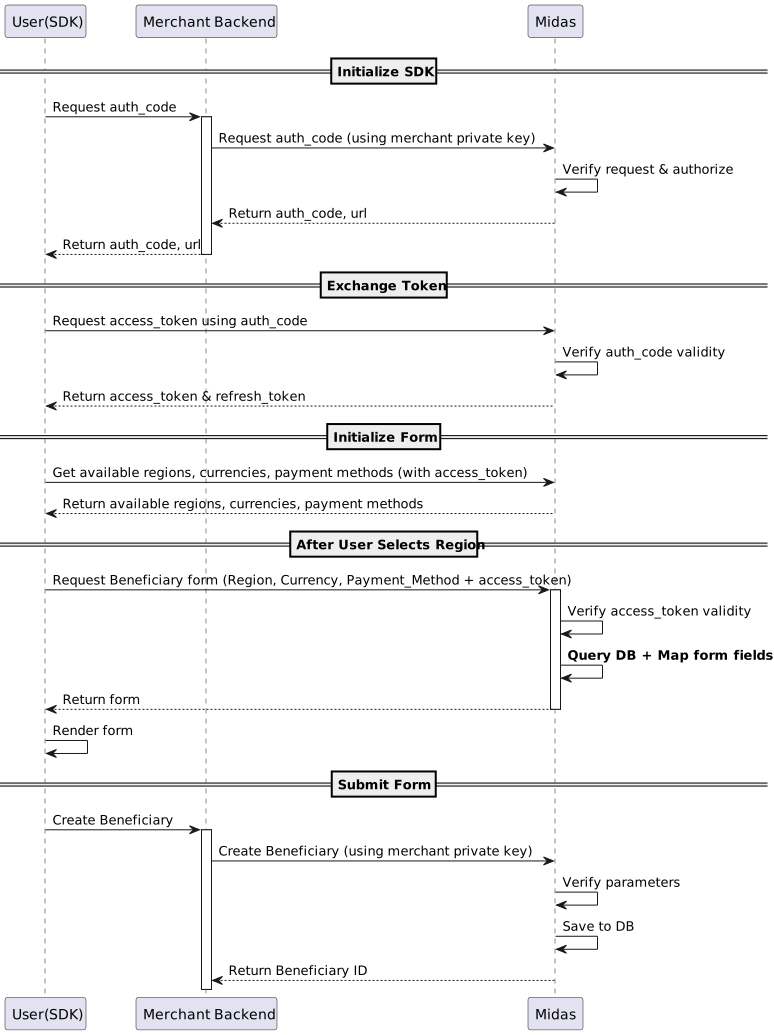
2. Integration Steps
Step 1. Install and import the SDK
# npm
npm install @txgw/payout-components

# pnpm
pnpm add @txgw/payout-components

# yarn
yarn add @txgw/payout-components
import { init, createElement } from "@txgw/payout-components";
Step 2. Initialize the SDK
2.1 Generate code_verifier
Before initializing the SDK you must prepare the PKCE code_verifier on the client. This value is required when exchanging your authorization code and follows the RFC 7636 Section 4. A minimal implementation looks like this:
const dec2hex = (dec: number) => {
  return ("0" + dec.toString(16)).slice(-2);
};

const generateCodeVerifier = () => {
  const length = Math.random() * (129 - 43) + 43;
  const array = new Uint32Array(length / 2);
  window.crypto.getRandomValues(array);

  return Array.from(array, dec2hex).join("");
};

const codeVerifier = generateCodeVerifier();
Send codeVerifier to your backend over a secure channel whenever you need to request a new authorization code.
On the server, install
js-base64to encode the hash result and derive thecode_challenge:
npm install js-base64
import crypto from "node:crypto";
import { Base64 } from "js-base64";

const sha256 = (value: string) => {
  const hash = crypto.createHash("sha256");
  hash.update(value);
  return hash.digest();
};

const generateCodeChallenge = (codeVerifier: string) => {
  const digest = sha256(codeVerifier);
  return Base64.fromUint8Array(new Uint8Array(digest), true); // base64url encoded
};

const codeVerifier = "34d7704c787a698409dc581e22b11ff48d634d249e7f242dcb14"; // from request
const codeChallenge = generateCodeChallenge(codeVerifier);
Store the code_verifier securely on the client, and keep the generated code_challenge only on the server for use in the authorization request.
2.2 Set up the server for authentication
When the page loads, your backend should call GetAuthorizationCode and include the client-generated code_challenge. A typical request body looks like:
{
  "merchant_id": "{{merchant_id}}",
  "sub_merchant_id": "{{sub_merchant_id}}",
  "code_challenge": "xxxxx_obfuscated_xxxxx",
  "scope": ["r:midas:beneficiary_form"]
}
2.3 Initialize the SDK
import { init, createElement } from "@txgw/payout-components";
import getAuthCode from "getAuthCode"; // use your own way to get authCode

const { authCode, domain } = getAuthCode();

// Initialize with your authentication credentials
init({
  authCode,
  domain,
  codeVerifier: "your_code_verifier",
});
2.4 Import Component Styles
To ensure the components render correctly, you need to import the component CSS styles. You can do this in one of the following ways:
Option 1: Import in your CSS file (e.g., index.css)
@import "@txgw/payout-components/index.css";
Option 2: Import in your JavaScript file
import "@txgw/payout-components/index.css";
Step 3. Add the Payout Component
3.1 Render component with transfer method selection
// Create a beneficiary form component
const beneficiaryForm = createElement("beneficiaryForm");

// Mount the component to a DOM element
beneficiaryForm.mount(document.querySelector("#form-container"));

// Listen for form submission
beneficiaryForm.on("submit", (data) => {
  console.log("Form submitted:", data);
  // Handle the submitted beneficiary data
});
3.2 Render component with preset transfer method
// Create a beneficiary form component
const beneficiaryForm = createElement("beneficiaryForm", {
  defaultValues: {
    region_code: "US",
    currency: "USD",
    payment_method: "LOCAL",
    payout_type: "B2P",
  },
  customizations: {
    layout: [
      {
        name: "bankDetails",
        hidden: true,
      },
    ],
  },
});

// Mount the component to a DOM element
beneficiaryForm.mount(document.querySelector("#form-container"));

// Listen for form submission
beneficiaryForm.on("submit", (data) => {
  console.log("Form submitted:", data);
  // Handle the submitted beneficiary data
});
4. API Reference
4.1 init(options: InitOptions)
Initializes the SDK with authentication credentials.
Parameters:
options.authCode(string): Your authorization codeoptions.domain(string): The API domain to request data like payment infooptions.codeVerifier(string): Thecode_verifierfield used to get auth token
4.2 createElement(type, options?)
Creates a new component instance.
Parameters:
type(string): Component type (currently supports'beneficiaryForm')options(object): Component-specific options
Returns: SDKComponent instance
4.3 SDKComponent Methods
4.3.1 mount(container: Element)
Mounts the component to a DOM element.
4.3.2 unmount()
Unmounts the component and cleans up resources.
4.3.3 on(eventType, handler)
Subscribes to component events.
4.3.4 off(eventType, handler?)
Unsubscribes from component events.
4.3.5 isMounted()
Returns whether the component is currently mounted.
5. BeneficiaryForm Component
The beneficiaryForm component provides a dynamic form for collecting beneficiary information.
5.1 Options
interface BeneficiaryFormOptions {
  defaultValues?: {
    region_code?: string; // Country code (e.g., 'US', 'ID')
    currency?: string; // Currency code (e.g., 'USD', 'IDR')
    payment_method?: string; // Payment method (e.g., 'LOCAL', 'SWIFT')
    payout_type?: "B2P"; // Payout type (currently only B2P supported)
  };
  customizations?: {
    layout?: Array<{
      name: "bankDetails";
      hidden?: boolean;
    }>;
  };
}
5.2 Form Flow
- Country & Currency Selection: User selects bank location and account currency
- Payment Method Selection: Based on country/currency, available payment methods are shown
- Beneficiary Details: Dynamic form fields based on selected payment method
- Submission: Form data is validated and submitted
5.3 Example Data Structure
When the form is submitted, you'll receive data in this format:
{
  "beneficiary": {
    "address": {
      "country": "US",
      "street_address": "123 Main St"
    },
    "bank_account": {
      "account_name": "John Doe",
      "account_number": "1234567890"
    },
    "entity_details": {
      "mobile_number": "+1234567890"
    }
  }
}